
You can connect an AI tool such as Claude or ChatGPT, or an AI phone agent, to your ResponsiBid account. Once connected, it can look up callers, quote new work, read proposals back to customers, record their choices, accept quotes, book appointments from CrewCal, and help you rewrite your follow-ups. It only works with your company’s data, and a ResponsiBid admin approves every connection.
Before you start
- A ResponsiBid admin login. Only an admin can approve the connection.
- An AI tool that supports custom MCP connectors with OAuth sign-in, such as Claude or ChatGPT.
- The sign-in details for your AI tool. Claude and ChatGPT need none: they set up the sign-in themselves. For other AI tools, use the details ResponsiBid sends you.
- To book appointments through the assistant, CrewCal customer self-scheduling turned on. See Accept a quote and book the first visit below.
Connect your AI tool
Claude
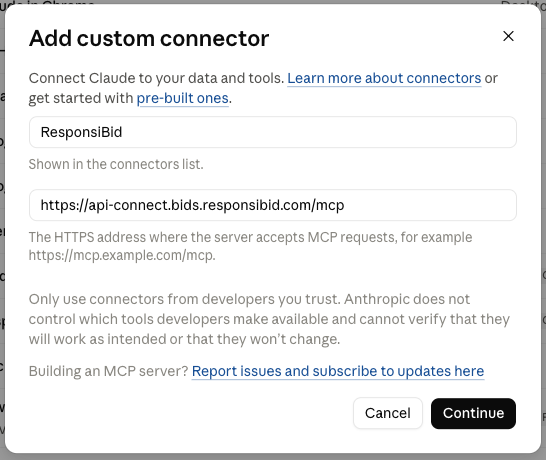
1. Go to Settings → Connectors → Add custom connector.
2. Enter this address: https://api-connect.bids.responsibid.com/mcp
3. Leave the advanced settings (client ID and client secret) blank. Claude sets up the sign-in by itself.
4. Sign in to ResponsiBid when Claude asks, review the consent screen, and select Authorize.
ChatGPT
1. Open Plugins, select Add, then Add custom MCP server.
2. Name it ResponsiBid. Under Connection, choose Server URL and enter: https://api-connect.bids.responsibid.com/mcp
3. Set Authentication to OAuth. ChatGPT finds our sign-in settings and picks Client Identifier Metadata Document (CIMD) by itself. You don’t need a client ID or secret.
4. Check “I understand and want to continue”, then select Create as a plugin.
5. Select Connect ResponsiBid, sign in to ResponsiBid, review the consent screen, and select Authorize.
ChatGPT lists whoever added the plugin as its Developer. That’s expected for a custom MCP server.
Other AI tools
1. Look for custom connectors or MCP servers in the settings.
2. Enter this address: https://api-connect.bids.responsibid.com/mcp
3. Enter the client ID ResponsiBid sent you, and the client secret if we sent one.
4. Sign in to ResponsiBid when the AI tool asks, review the consent screen, and select Authorize.
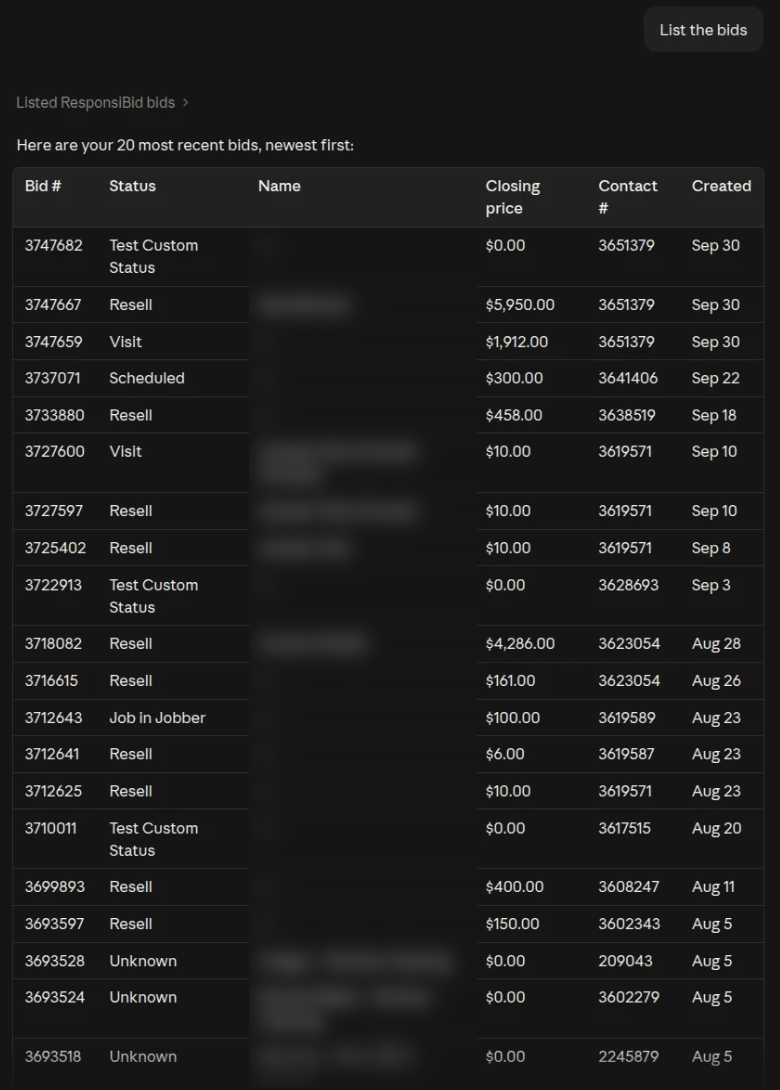
Once connected, your AI tool lists the ResponsiBid tools.
What the consent screen shows
- The AI tool’s name, and which ResponsiBid company account it will access.
- A table of the data it may read or change.
- Cancel and Authorize buttons.
If you are not an admin, the screen asks you to have an admin complete this step. The AI tool gets only the permissions shown on this screen.
What your assistant can do
Identify callers
- Look up a caller by phone number and get their name, phone numbers and email.
- Add a first-time caller as a new contact. If the caller is already in ResponsiBid with the same email or phone number, it uses that contact instead of creating a duplicate.
- Phone lookup matches on the last 10 digits, so a number with a country code or extension still matches. A number with fewer than 10 digits is rejected. A number with no match returns no contact rather than an error.
- Look up a contact by name, email or property address when you don’t have their phone number.
Quote new work
- Look up your services, sub-services and their questions, house sizes, service areas and lead sources.
- Price a job from the caller’s answers without saving anything, for a quick price check.
- Create a new quote for a new or existing contact and property, then share the proposal link with the caller.
- A new quote’s prices can take a moment to appear on the proposal.
- Quotes the assistant creates have bundles turned off.
- Save a quote without contacting the customer, show you the prices, and start the follow-up only when you say so.
Answer questions about existing quotes
- Open a quote, or list your company’s quotes, newest first, one page at a time.
- Reading and listing never change a quote.
Walk a customer through a proposal
- Read a proposal back: line items, bundles, package tiers and the total.
- Record the package the customer chooses. The total is recalculated and the proposal shows the choice. Choosing a different package replaces the earlier one. Sending the same choice twice does not apply it twice.
- Add or remove a bundle, and the total updates. Bundles must already be turned on for that quote in ResponsiBid. The assistant cannot turn them on.
- Only package tiers that are turned on and named appear. Nothing is recommended automatically.
Accept a quote and book the first visit
- The customer can accept their quote in the conversation. The acceptance is recorded with their name as the signature and the date, exactly as on the proposal page, and your usual acceptance notifications and CRM sync go out. A package must be selected first.
- Right after acceptance, the assistant offers real appointment times from CrewCal: the same times the proposal page would offer, based on the property address and the services on the quote.
- The customer picks a time and the assistant books it. You get the same booking a proposal-page booking makes:
- If your company uses jobs, you get the same job and work order.
- Otherwise, the quote moves to its scheduled status with the date, arrival window and assigned crew.
- Either way, any connected CRM is updated.
- The quote’s status follow-up messages go out as usual, and you get the email that tells you a customer scheduled themselves online.
- If no times are available, the customer hears that no times are available right now, and the quote moves to your no-appointment status so someone can follow up.
To set up booking:
- Turn on CrewCal customer self-scheduling, and set CrewCal up for the services and addresses you want customers to book. CrewCal offers no times for a service and address it is not set up for.
- Choose the status a quote moves to when no times are available (the CrewCal no-appointment status). If none is set, the quote stays where it is.
- Without self-scheduling, the assistant still records the acceptance.
Good to know:
- The assistant books the first appointment only. To move or cancel a visit, the customer contacts you.
- Offering times does not hold them. If someone else takes a time between the offer and the booking, the booking is refused and the customer is offered the current times.
- Times are given in your company’s local time zone, with the zone named.
- A quote that is already scheduled or closed cannot be accepted or booked again through the assistant.
Review and rewrite your follow-ups
- List your follow-up sequences, and read one with every step in the order it sends, each step’s current wording, and the merge fields it can use.
- Update steps, for example to rewrite a whole sequence in a friendlier tone.
- A change that uses an unknown merge field is refused before anything is saved.
- An edit also changes messages already scheduled for customers in that sequence, unless someone edited that customer’s message by hand. Messages already sent do not change.
- Each step is saved on its own. If a rewrite of several steps stops partway, the sequence is part new and part old and keeps sending, so ask the assistant which steps it changed.
Permissions each task uses
The consent screen shows these as Read and Write columns:
- Contacts: Read to look up callers. Write to add new callers.
- Catalog: Read to look up services and price a job.
- Bids: Read to open quotes, list them and read proposals. Write to create quotes, record package and bundle choices, accept quotes and book appointments.
- Follow-ups: Read to review them. Write to rewrite them.
- Services: Read to look up service prices and packages. Write to change prices and packages.
- House sizes: Read to list them. Write to add, rename, reorder or delete house sizes.
- Bundle sets: Read to list them. Write to turn a bundle’s auto-add on or off.
Things to try
- “Who is calling from 555-123-4567?”
- “Price this job for the caller, but don’t save anything yet.”
- “Create a quote for this caller and give me the proposal link.”
- “Read me the proposal for their latest quote and record the package they chose.”
- “Show me my follow-up sequences and rewrite the first email to sound friendlier.”
Manage or remove a connection
- Go to Company Settings > API Tokens: (https://app.bids.responsibid.com/CompanySettings/ApiTokens) Each connection appears with an OAuth tag and the name of the person who authorized it.
- Revoke a connection there. Only that connection is affected.
- Revoking cannot be undone. To use the AI tool again, connect it again.
- Existing Zapier connections keep working. Nobody has to reconnect or approve Zapier again.
Your data
- The assistant only ever sees your own company’s contacts, quotes, services and follow-ups.
- There is a request limit, lower for adding contacts and creating quotes. An assistant that sends too many requests is asked to wait and try again.
Troubleshooting
- “MCP access isn’t enabled for this company. Contact ResponsiBid support to enable it.” Your company’s access is not turned on. Contact ResponsiBid support.
- “Only an administrator can authorize third-party access.” Ask an admin on your team to complete the connection.
- The assistant says it does not have permission for a task. The AI tool only gets the permissions ResponsiBid set up for it. Contact ResponsiBid support.
- The assistant is asked to wait. It sent too many requests. Wait a moment and try again.
- No appointment times are offered. Check that CrewCal customer self-scheduling is on and that CrewCal is set up for that service and address. See Why are there no suggestions on CrewCal?
- A bundle cannot be applied. Turn bundles on for that quote in ResponsiBid first.
Tool reference for phone-agent setup
- Callers: find_contact_by_phone, find_contact, create_contact
- Quoting: get_catalog, compute_pricing, create_bid, start_follow_up
- Catalog lookups: list_catalog_services, list_house_sizes, list_service_areas, list_lead_sources
- Pricing setup: get_service_pricing, set_house_size_prices, set_option_price, set_packages, manage_house_sizes, set_bundle_auto_add
- Existing quotes: get_bid, list_bids
- Proposals: get_proposal, select_proposal_package, select_proposal_bundle
- Accepting and booking: confirm_signature, request_scheduling_slots, confirm_appointment
- Follow-ups: list_follow_up_sequences, get_follow_up_sequence, list_follow_up_steps, update_follow_up_step